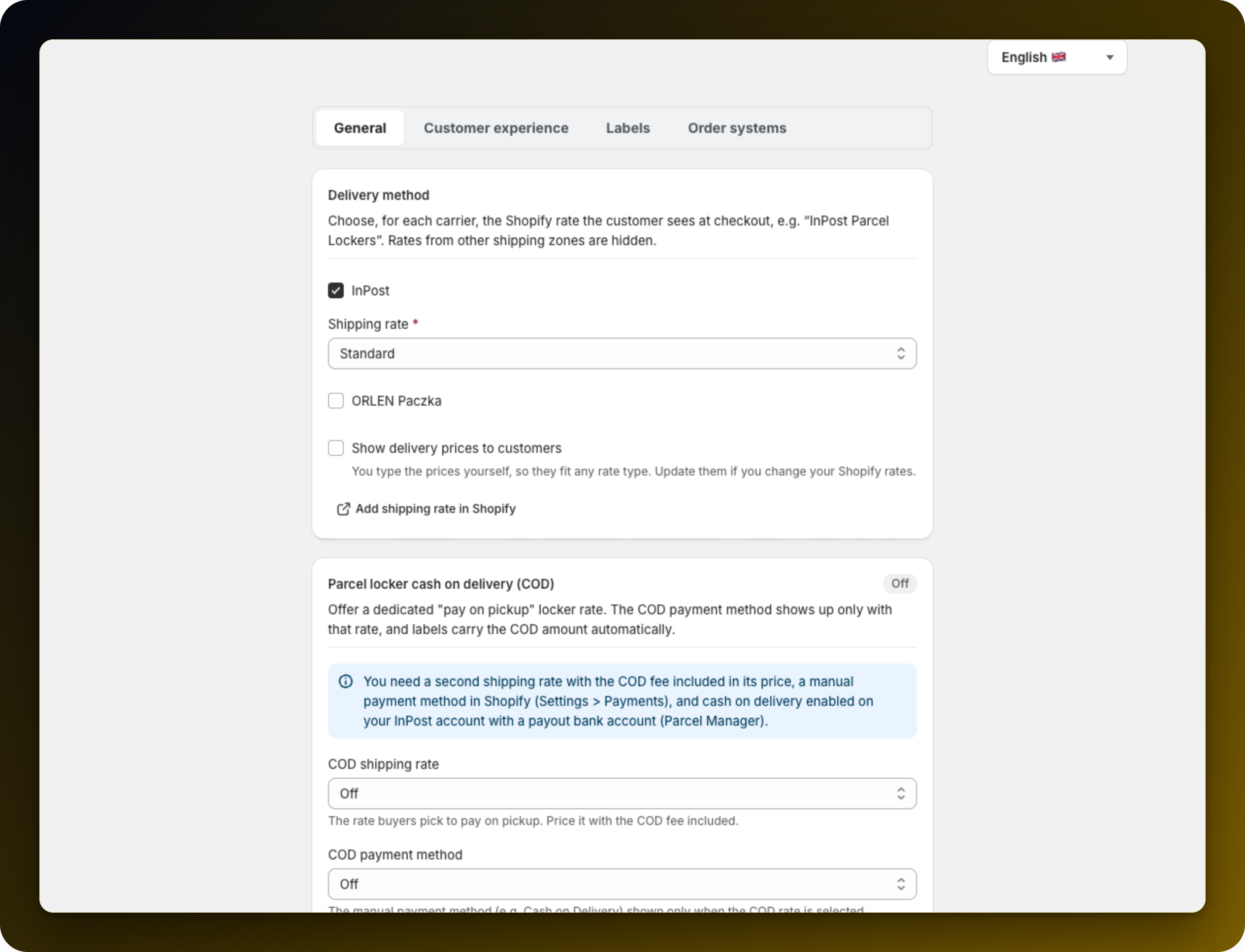
The app does not create shipping rates. It works with the rates you already have in Shopify. The Delivery method card, on the General tab of Settings, is where you tell it which rate means pickup point delivery. Rates from other shipping zones are hidden from it.
If you have no suitable rate yet, make one in your Shopify shipping settings, for example a rate named "InPost Parcel Lockers". The card links straight there with Add shipping rate in Shopify, and says so when it finds no rates for your market.
InPost is ticked for you. Choose the rate under Shipping rate and save. An enabled carrier without a rate is not accepted. Some entries carry a note. A warning means the rate is a poor choice, but you can still pick it. A greyed out entry belongs to your other carrier.
Some rates are priced by a carrier service at checkout. They only work if your store has carrier-calculated shipping, which needs the Advanced plan or higher, Grow with yearly billing, or a paid add-on. Without it your buyers will most likely never see the rate and pickup selection will not work with it. Pick a rate with a fixed price instead.
The same card carries Show delivery prices to customers, off by default. Turning it on reveals a free text field per enabled carrier, InPost price and ORLEN Paczka price. You type the prices yourself, so they fit any rate type.
Place a test order and check the rate at checkout carries the point code after you pick a point.
A second carrier needs its own rate and a name that does not overlap: Add ORLEN Paczka alongside InPost.
If you turned prices on, update them whenever you change a Shopify rate.
Stuck on any of this? Open the chat in the bottom right corner of the app and we will help you set it up.